Wolf Play Game

Wolf Play Game
 Winter Month: 3   Night   Clear  Moon: 
      

Chatbox
 Drunken seas
10:48:46 Pera
@Rat
Thank you, lol, I can drop a tutorial in forums probably?
 The Rat Lord
10:38:57 Rat/spooky/(he/him)
Pera
It still looks good! Every time I try to draw a horse it just looks like a fat dog with skinny legs XD
 Drunken seas
10:34:33 Pera
@Ezra
Thank you! I have studied my own Arabian for a little bit, sadly she doesn’t have as much hair, or gusto XD
 Ezranian
10:33:11 ezra, he/him
pera-
ooh nice! i'm not a horse expert but it looks very accurate too :)
 Drunken seas
10:32:02 Pera
Arabian
-Click-
 Serpents
10:18:57 Waterfall,Zane,Pixal
anyone up for a rp pm me
 Ezranian
10:17:05 ezra, he/him
yesssss my explorers are starting to get to dg
 The Rat Lord
10:10:38 Rat/spooky/(he/him)
Ok rattie is off for a bit, be back soon <3
 The Rat Lord
10:08:56 Rat/spooky/(he/him)
For next time
 The Rat Lord
10:08:23 Rat/spooky/(he/him)
Dawn
Trading post> Detailed wolf search> scroll down> Click for Breeding> pick gender> then price> then hit submit
 Dawn
10:07:12 
Oh ok thx

 Ezranian
10:07:02 ezra, he/him
females can only be bred once a game year
 Dawn
10:06:32 
Ohhh wait but my wolf is not pregnant so why can’t I breed?
 Ezranian
10:06:10 ezra, he/him
dawn-
if you mean you can't find the button on a wolf's page, that's because you don't have any breedable females at the moment
 Owlstar
10:05:24 tiger\Owl|she\her
dawn I would help but I'm not the best at explaining. and you could always go to sales chat too
 The Rat Lord
10:05:10 Rat/spooky/(he/him)
Dawn
You do breed then go all the way down and click submit (you can also pick your gender you want to mate with)
 Dawn
10:03:15 
I can’t find out where to breed other wolves in the trading post like it says the wolf is for breeding but I cannot find the button
 Owlstar
09:58:45 tiger\Owl|she\her
ok :3
 Ámor
09:58:17 Slowly coming back
@Owl
Neither of the pregnancies were really planned, but we always talked about having 2 kids at least, im gonna try to 100% confirm it before really telling people at my work. I may bring it up to my one manager whose my friend if he works tomorrow
 ChatNoir
09:57:11 Chat, Noir, Venti
Life happens.

Refresh

You must be a registered member for more
than 1 day before you can use our chatbox.


Quests

Embark on a Quest.

Alliance Battles

Join an Alliance.

Challenges

Hourly Damage Variances
Wolverine : -4
Brown Bear : +1
Marten : +2


WolfPlay Game
Chatbox
 Drunken seas
10:48:46 Pera
@Rat
Thank you, lol, I can drop a tutorial in forums probably?
 The Rat Lord
10:38:57 Rat/spooky/(he/him)
Pera
It still looks good! Every time I try to draw a horse it just looks like a fat dog with skinny legs XD
 Drunken seas
10:34:33 Pera
@Ezra
Thank you! I have studied my own Arabian for a little bit, sadly she doesn’t have as much hair, or gusto XD
 Ezranian
10:33:11 ezra, he/him
pera-
ooh nice! i'm not a horse expert but it looks very accurate too :)
 Drunken seas
10:32:02 Pera
Arabian
-Click-
 Serpents
10:18:57 Waterfall,Zane,Pixal
anyone up for a rp pm me
 Ezranian
10:17:05 ezra, he/him
yesssss my explorers are starting to get to dg
 The Rat Lord
10:10:38 Rat/spooky/(he/him)
Ok rattie is off for a bit, be back soon <3
 The Rat Lord
10:08:56 Rat/spooky/(he/him)
For next time
 The Rat Lord
10:08:23 Rat/spooky/(he/him)
Dawn
Trading post> Detailed wolf search> scroll down> Click for Breeding> pick gender> then price> then hit submit
 Dawn
10:07:12 
Oh ok thx

 Ezranian
10:07:02 ezra, he/him
females can only be bred once a game year
 Dawn
10:06:32 
Ohhh wait but my wolf is not pregnant so why can’t I breed?
 Ezranian
10:06:10 ezra, he/him
dawn-
if you mean you can't find the button on a wolf's page, that's because you don't have any breedable females at the moment
 Owlstar
10:05:24 tiger\Owl|she\her
dawn I would help but I'm not the best at explaining. and you could always go to sales chat too
 The Rat Lord
10:05:10 Rat/spooky/(he/him)
Dawn
You do breed then go all the way down and click submit (you can also pick your gender you want to mate with)
 Dawn
10:03:15 
I can’t find out where to breed other wolves in the trading post like it says the wolf is for breeding but I cannot find the button
 Owlstar
09:58:45 tiger\Owl|she\her
ok :3
 Ámor
09:58:17 Slowly coming back
@Owl
Neither of the pregnancies were really planned, but we always talked about having 2 kids at least, im gonna try to 100% confirm it before really telling people at my work. I may bring it up to my one manager whose my friend if he works tomorrow
 ChatNoir
09:57:11 Chat, Noir, Venti
Life happens.


Refresh

You must be a member for more than 1 day before you can chat.

Forums

→ WolfPlay is a fun game! Sign Up Now!


My Subscriptions
My Bookmarks
My Topics
Latest Topics
Following

Forums > Member Help > Guides
   1 

Animating in FireAlpacaJanuary 28, 2018 04:55 AM


Vennenum

Darkseeker
 
Posts:5797
#480658
Give Award

HOW-TO: Make Animations in FireAlpaca

Animations are (obviously) very popular. Pictures that move have always fascinated us. So how does it work?

I'll show you how I make a simple forward animation like I have in my banner (without the blinking part):
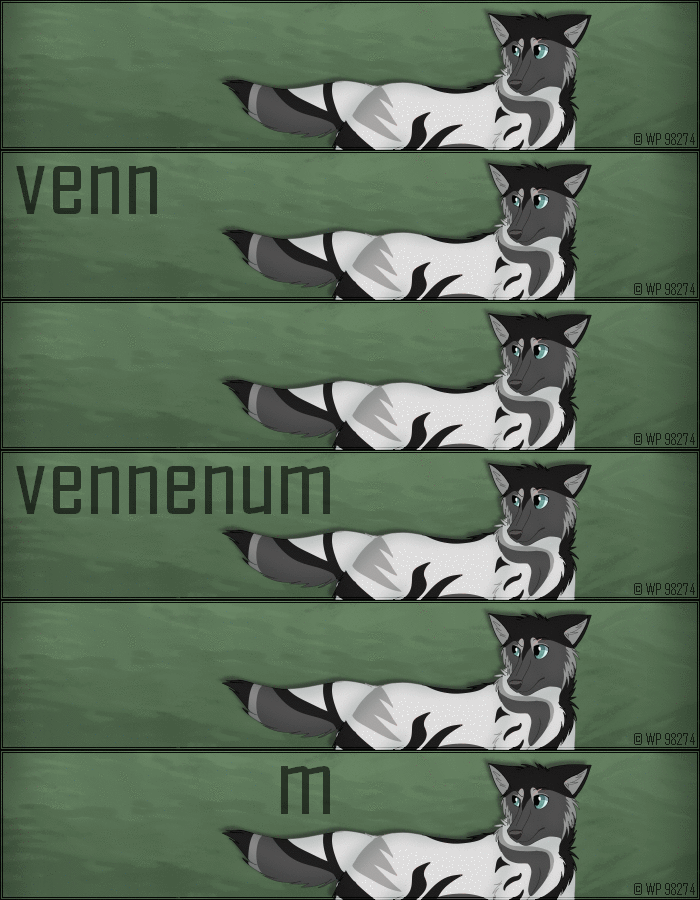
animation.gif
What you need to remember is - Each layer on your canvas is one frame in your animation. So you'll have to make each frame individually. As daunting as that sounds, it's actually quite simple once you know what you're doing.

green-light-dark-page-divider-by-thomashir-dan7y1c.png
1 - First off, you'll need to know how layers work. If you know this already, skip ahead to step 3.

In FireAlpaca, open a new image. I'm going to make the dimensions the typical WP avatar size: 300x300 pixels. I prefer the background color to be transparent, because you can always add a background later.
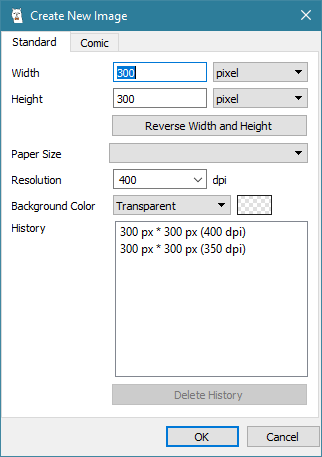
001-New-Image.png

2 - Once your canvas is open, look to where your layers panel is. It should look something like this:
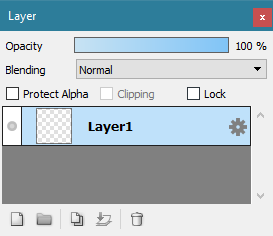
002-Layers.png
These buttons on the bottom left of your layers panel are going to be your friends. Play around with them. Make sure you know what they do. If you mess up on a layer, your whole animation will get messed up.

003-Layer-Buttons.png
Going left to right:
(1) Add Layer
(2) Add Folder
(3) Duplicate Layer
(4) Merge Layer(s)
(5) Delete Layer.


Usually while I do this, my layers panel will be expanded to the full extent, meaning, I get rid of the Navigator, etc that might be on top of it so I can see what I have so far. It also makes for a lot less scrolling when you get to using lots of folders and layers. This is completely optional, but you may find it useful in future, more complex animations.


3 - We're going to be doing a simple text animation. Press "T" on your keyboard (or on the tools bar) to access the Text tool. Press somewhere on the image, then type: TEST

For aesthetics reasons, center the words in the middle of the image. This will be the skeleton you use to build your animation. Always make sure you have a skeleton; then you know where things will be going.
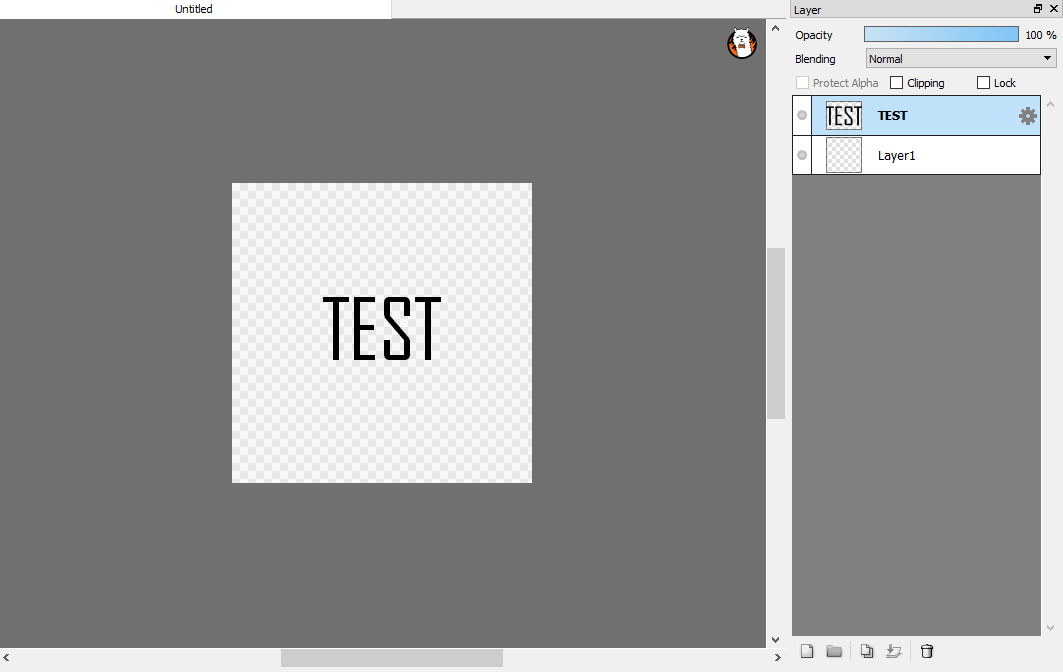
004-Add-Text.png

4 - Convert your TEST layer to a Color Layer.
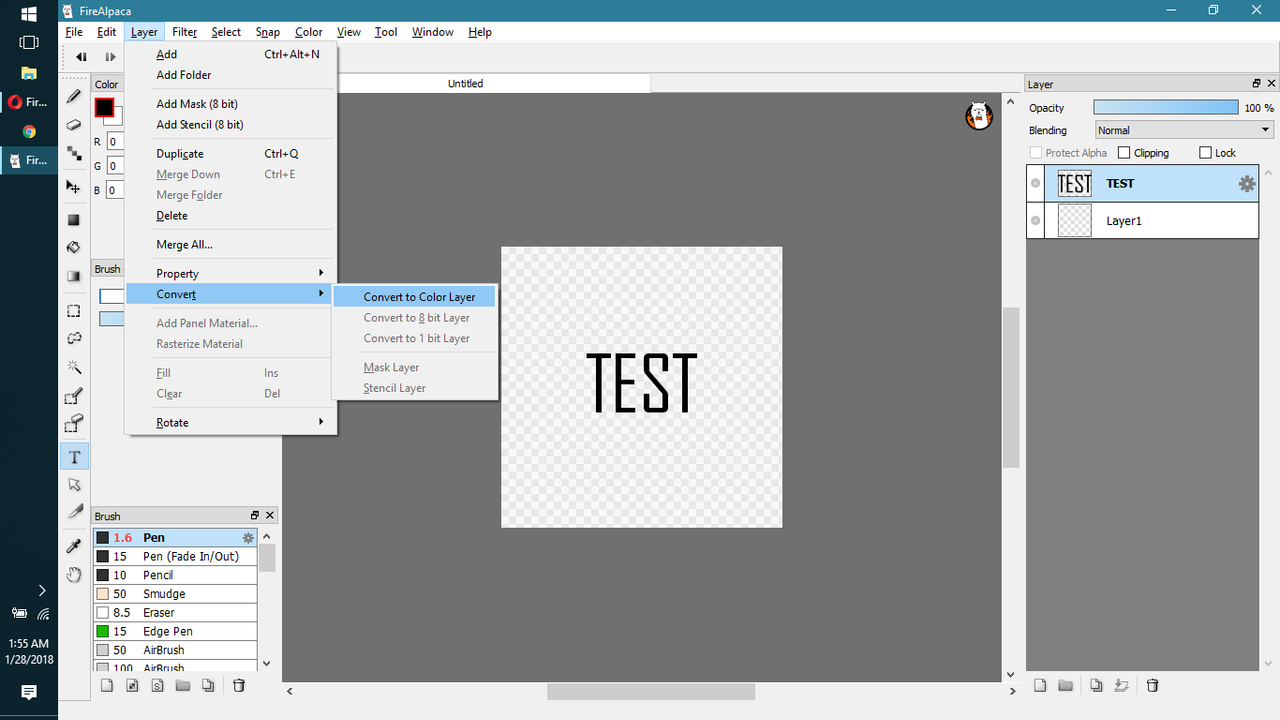
005-Convert.png
5 - Duplicate the layer 3 times until you've got four items that say "TEST". Then rename them (double click) accordingly: "T", "TE", "TES", and "TEST". This will help you keep track of what is exactly on the image. You could also just use numbers, as long as you remember which number represents what. Make sure to keep it consistent.
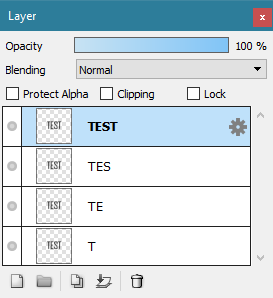
006-Duplicate-Layers.png

6 - Now, except for the bottom most one, hide all the layers. Click the grey circles to hide the layer.
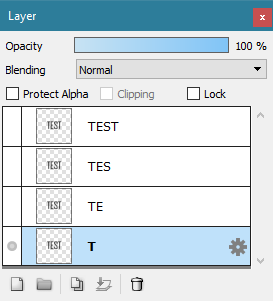
007-Hide-Layers.png

7 - Delete all the letters that are not visible in the letter name. I.e., in layer “T”, make sure what exists on the canvas is only the ""T"".

008-Start-Deleting.png

8 - Do the same for the other layers. Display only the layer you're working on. **ALSO MAKE SURE YOU’RE WORKING ON THE RIGHT LAYER**.
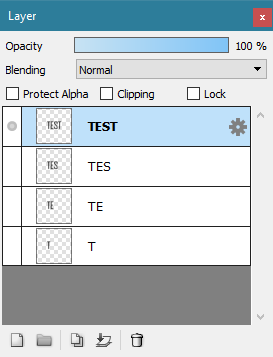
009-Make-Anim.png

9 - Click on "View" - "Onion Skin Mode". Then click on "View" - "Autoplay".
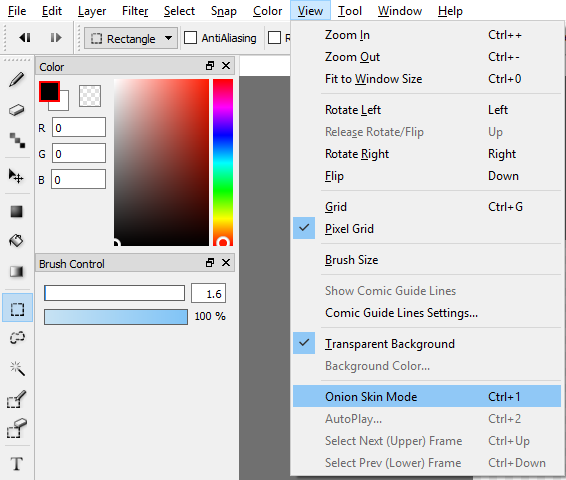
010-Open-Onion-Skin.png
Congratulations! You've made your first animation.

Now, you'll notice that in my screenshots, some of my tools have keyboard shortcuts you might not. Artists (should) rely on keyboard shortcuts to save on time. The less time you spend dawdling and finding tools is more time you can use to work on your art.

To set a keyboard shortcut, go to File > Shortcut Setting.


Okay. Now you've got an animation. How do you get it onto the web?


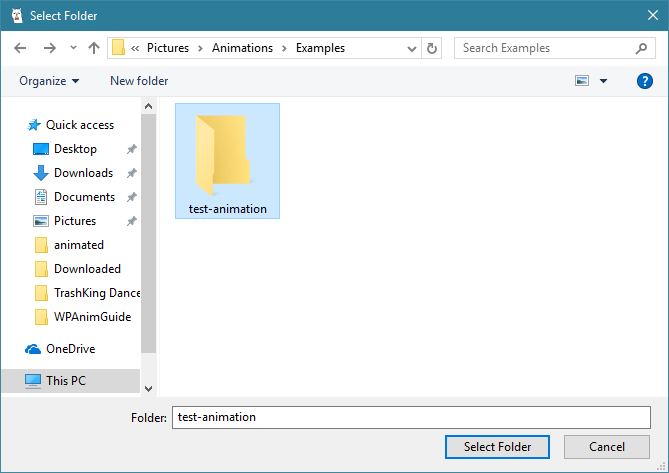
10 - Exit out of Autoplay. Select File > Export Layers (Onion Skin Mode). The Save screen will come up. Make a new folder and name it something memorable, like "test". Click into the folder, then press "Select Folder". When asked to open FireAlpaca Douga, select "Yes".
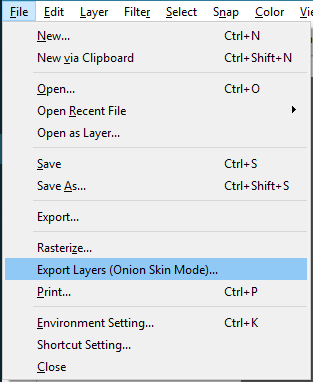
011-Export-PNG.png
012-Save-PNG.png

11 - Once you're on the website, scroll down a bit and click "Select all files". Navigate to where you saved your animation. Once all your files have been loaded, scroll down a bit more. Adjust framework speed to your desire. You might want to uncheck "Insert FireAlpaca logo" so you don't get that hideous alpaca on your new masterpiece. Then select "Create!" then "Download", then "Download" again.

12 - Name the image something memorable, then save it where you'll easily find it. Once you've saved it, simply upload it to an image host such as PostImages or Imageshack. Share link as necessary.

green-light-dark-page-divider-by-thomashir-dan7y1c.png
If any part was confusing, feel free to let me know and I can clarify for you.
Thanks for reading.

**Most animations are made in similar ways in different graphics programs. You just have to figure out what way works best for you.

page dividers can be found at Thomashir.deviantart.com


Edited at June 10, 2022 02:09 AM by Vennenum
Animating in FireAlpacaJuly 17, 2019 05:15 PM


Former Pack

Neutral
 
Posts:0
#1488935
Give Award
Hello!
I have tried following your guide! While I am sure your guide works I am unable to complete the steps. I have all of my layers set as color layers but for some reason I can not see a layer until I am clicked onto it. This
is when I am clicked onto the layer.
https://i.postimg.cc/yNmmwYCb/Clicked-On.png
then I click off of that layer and it is no longer visible!
https://i.postimg.cc/0jSZyg66/Clicked-Off.png

I have all of the other layers hidden and that layer is the only one made visible so why won't it show up? I there a setting that I may have set that caused this?

Edited at June 10, 2022 02:09 AM by Vennenum
Animating in FireAlpacaJuly 17, 2019 06:55 PM


Vennenum

Darkseeker
 
Posts:5797
#1489146
Give Award
Rufous - if you are in Onion Skin mode, only the activated layer will be displayed. Since everything else is hidden, nothing will show up.

Try turning it off.
Animating in FireAlpacaJuly 17, 2019 06:57 PM


Former Pack

Neutral
 
Posts:0
#1489152
Give Award
Ack. I feel dumb. Thanks so much! Finishing the rest of your guide now!

Edited at June 10, 2022 02:10 AM by Vennenum
Animating in FireAlpacaJuly 17, 2019 07:00 PM


Former Pack

Neutral
 
Posts:0
#1489171
Give Award
Thank you! This helped SO much!
Animating in FireAlpacaJuly 18, 2019 10:45 AM


Former Pack

Neutral
 
Posts:0
#1490077
Give Award
You can do blinking in FireAlapaca! Add another plain layer:

https://i.postimg.cc/mDp4BS73/JHs-HR9-Mp-J7hl-FYT3.gif
Animating in FireAlpacaJuly 19, 2019 10:32 AM


Former Pack

Neutral
 
Posts:0
#1493051
Give Award
I would but I just do different pictures to do a Slideclip
Animating in FireAlpacaJuly 19, 2019 01:26 PM


Vennenum

Darkseeker
 
Posts:5797
#1493537
Give Award
^ Which distorts each image and makes them look even worse.
If you make your animations manually, you have control over how each and every frame looks.
Animating in FireAlpacaJuly 20, 2019 12:58 PM


Former Pack

Neutral
 
Posts:0
#1496279
Give Award
Thanks Venn! This helped me a lot! I've always been wondering how people do this! Thanks again!

Forums > Member Help > Guides
   1 

Refresh